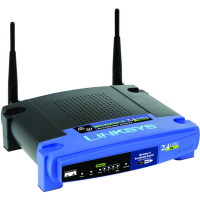
One of the most popular pages on Technically Easy is the post titled Securing Linksys WRT54G Wireless-G Router. In that post I outlined the steps needed to secure these particular wireless broadband routers to maintain your wireless network security.
The one problem I didn’t mention is how to reset the router back to the factory defaults. You may need to do this if you forget your router’s password or made a mistake and you can’t connect to the router. In this post I’ll outline two methods you can follow to reset your Linksys WRT54G Wireless-G router.
Reset Button
Note:
Resetting the router to the factory defaults will delete any changes you have made to the router, including any security settings. This should be used as a last resort.
The first method involves simply pressing a button located on the back of the router. The image below (courtesy of Linksys) shows where the button is located.

To reset your router, use the following steps:
- Press the reset button for 30 seconds.
- Open up your Web browser and enter “192.168.1.1” in the address bar.
- For the login, leave a blank ID and enter “admin” as the password.
The settings should now be returned to the factory default settings, meaning any changes you had made would be deleted.
The router has now been reset. Follow the steps in Securing Linksys WRT54G Wireless-G Router to secure your router and for securing a Linksys wireless network.
Through the Web Administration Pages
The second method involves logging into the Web administration pages of the router. Use the following steps to reset the router using this method:
- Open your Web browser and enter the IP address of your router. By default, the address is “192.168.1.1”.
- Enter your user ID And password when prompted. Hopefully this has been changed, but if it hasn’t, the default is no ID and “admin” as the password.
- At the top of the Web page, click “Administration” and then “Factory Defaults”.
- Beside “Restore Factory Defaults”, click “Yes”.
- Now click the “Save Settings” button at the bottom of the Web page.
Your WRT54G wireless router should now be reset to the factory defaults. Ensure you follow the steps outlined in Securing Linksys WRT54G Wireless-G Router to secure your router and for securing a Linksys wireless network.
Summary
This post has provided two methods you can use to reset your Linksys WRT54G Wireless-G router. If you are having problems with your router, try to reset the Linksys WRT54G to the factory defaults, and then make the changes again and see if the router starts working again.
You should also consider using a VPN once you have reset your router. Over at VPNTeacher.com you can find out how to install and use a VPN on your computer.