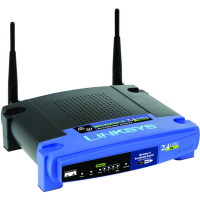
I discussed establishing good wireless network security in a post titled Securing a Wireless Network, but now I will discuss securing the Linksys WRT54G wireless-G router. I currently have a Linksys WRT54G Wireless-G router. When I work from home I use this router to connect to work through VPN, and have done it without any problems. It has made a great cable router for my broadband connection.
The big issue with wireless networks is security. As anyone with a wireless network card within a few hundred feet of your router can connect to your router. To prevent this from happening, it is important to secure your router.
Securing the Linksys WRT54G Wireless-G Router
Note:
If you need to reset your router back to the factory defaults, then please read How to Reset the Linksys WRT54G Wireless-G Router.
To secure your Linksys WRT54G wireless router, follow these steps:
- Open your Internet browser and enter the following in the address bar: http://192.168.1.1.
- Enter the user ID and password for your router. If you haven’t changed it, the default password is “admin”. We will change it later if you haven’t already changed it.
- You should now see the “Basic Setup” Web page display in your browser. Scroll down the page until you see “Maximum Number of DHCP Users”.
- Count the number of computers that will connect to the router, and type it into the “Maximum Number of DHCP Users textbox”.
- Scroll down to the bottom of the Web page and click “Save Settings”. Once the settings have been saved, click “Continue” to return to the Web page.
- At the top of the Web page, click the “Administration” option in the menu bar.
- On the “Management” Web page, you should see two password text boxes. This is where you should change your administrative password. Type in a new secure password into both boxes. If you need help creating a secure password, please read Creating Secure Passwords.
- Once you have changed your password, click “Save Settings” at the bottom of the Web page.
- You may be prompted to login again, if you are then enter you new password in the password field.
- Navigate back to the “Management” Web page by clicking the “Administrative” option in the menu.
- We will now encrypt your connection to your router setup from your computer. To do this click the “HTTPS” checkbox next to the “Access Server” option.
- Once again, click the “Save Settings” button at the bottom of the Web page.
- In your browser, change the address to: https://192.168.1.1.
- Login with your password and then click the “Wireless” menu option.
- Beside the “Wireless Network Name (SSID)” option, type in a name for you network connection.
- Click the “Save Settings” button and the “Continue” button to return to the “Basic Wireless Settings” page.
- Click the “Wireless Security” sub-menu option at the top of the page. This is where we will provide the most important security setting.
- Next to “Security Mode”, select “WPA – Personal” from the drop-down list. If you have trouble connecting to your wireless connection, you can try selecting “WEP”, but your connection will be much less secure. For more information about WEP and WPA please read Wireless Security: WEP and WPA.
- Next to “WPA Algorithms”, select “AES”. Once again if you have trouble connecting to your wireless router, select “TKIP”.
- Now you must get very creative. Specify a long “WPA Shared Key” with a mix of upper and lower case letters, numbers and punctuation. Once again, please read Creating Secure Passwords for tips on how to do this. In this case the longer the better.
- Click the “Save Settings” button at the bottom of the Web page, and then the “Continue” button.
Note:
If you have changed the IP address of your wireless router, enter that into the address bar. By default, the address is 192.168.1.1.
This option will assign a specific number of IP address to computers. If more than this number of computers tries to connect to your router, they will not be able to.
You won’t get the settings saved page again because the URL in the address bar is not longer correct. Since you have changed your connection to HTTPS, it you need to specify that in the address when you connect to the router setup.
If you get a security error, ignore the error and continue to the Web page.
Make sure you write down this key somewhere, either on a piece of paper or in a text document on your computer. You will need this information when you connect to your wireless network.
Now you are all done securing your wireless router and network. All you need to do is connect to your network, and enter your “WPA Shared Key” exactly as you specified it. I won’t go into detail on how to connect to your wireless network, as I will save that for another post.
Wireless Router Security Connection Questions
Question: How come we didn’t disable the SSID broadcast? Won’t that help with securing my wireless connection?
Answer: It has been mentioned many times that disabling your SSID broadcast will help secure your network. The reality is that those who attempt to get into your wireless network will be able to easily pick up or SSID whether it is broadcasted or not.
You may also have problems connecting to your wireless router if you disable the broadcasting of your SSID. I keep it enabled.
Question: Why don’t you filter who connects to your wireless router using the MAC address by turning on MAC address filtering?
Answer: This is another tip you may see on the Internet about securing your wireless network. There are a few problems with turning on the MAC address filtering.
The first problem is that a hacker can easily spoof a MAC address, and therefore bypass the MAC filtering. The second is that you need to manage the MAC addresses of all network cards attempting to connect to your router. Since it really doesn’t provide a lot of security, it is just easier to keep it turned off.
Question: Why do you specify to use WPA – Personal first, and not WEP?
Answer: The reason is that WPA is much more secure than WEP, and therefore you should use that security mode over WEP. An experienced hacker can easily crack WEP encryption so it doesn’t provide as strong security as WPA. If you can’t use WPA, use WEP because it is still better than nothing.
After following the steps, you should now be confident knowing that you have established a good wireless network security which provides a secure Internet connection through your Linksys WRT54G Wireless-G router.